
The hiring flow: moving candidates through stages
Updated April 23, 2026 · 3 min read
Each job has its own kanban-style hiring flow. Five visible stages, plus a collapsed Rejected section. Move candidates between stages from any view in the app: the candidates table, the candidate detail page, or directly from the kanban.
The five stages
The pipeline always runs in this order:
- Recommended: candidates the AI flagged as a strong fit (score 85+). Default stage for any new applicant the AI likes
- Assessment: candidates you have decided to evaluate further. Could mean a take-home exercise, a portfolio review, or a screening call
- Interview: candidates actively in your interview process. Might be in early-stage chats or final rounds
- Offer: candidates you have extended an offer to
- Hired: candidates who accepted and joined
Plus Rejected, shown collapsed below the visible columns. Click to expand.
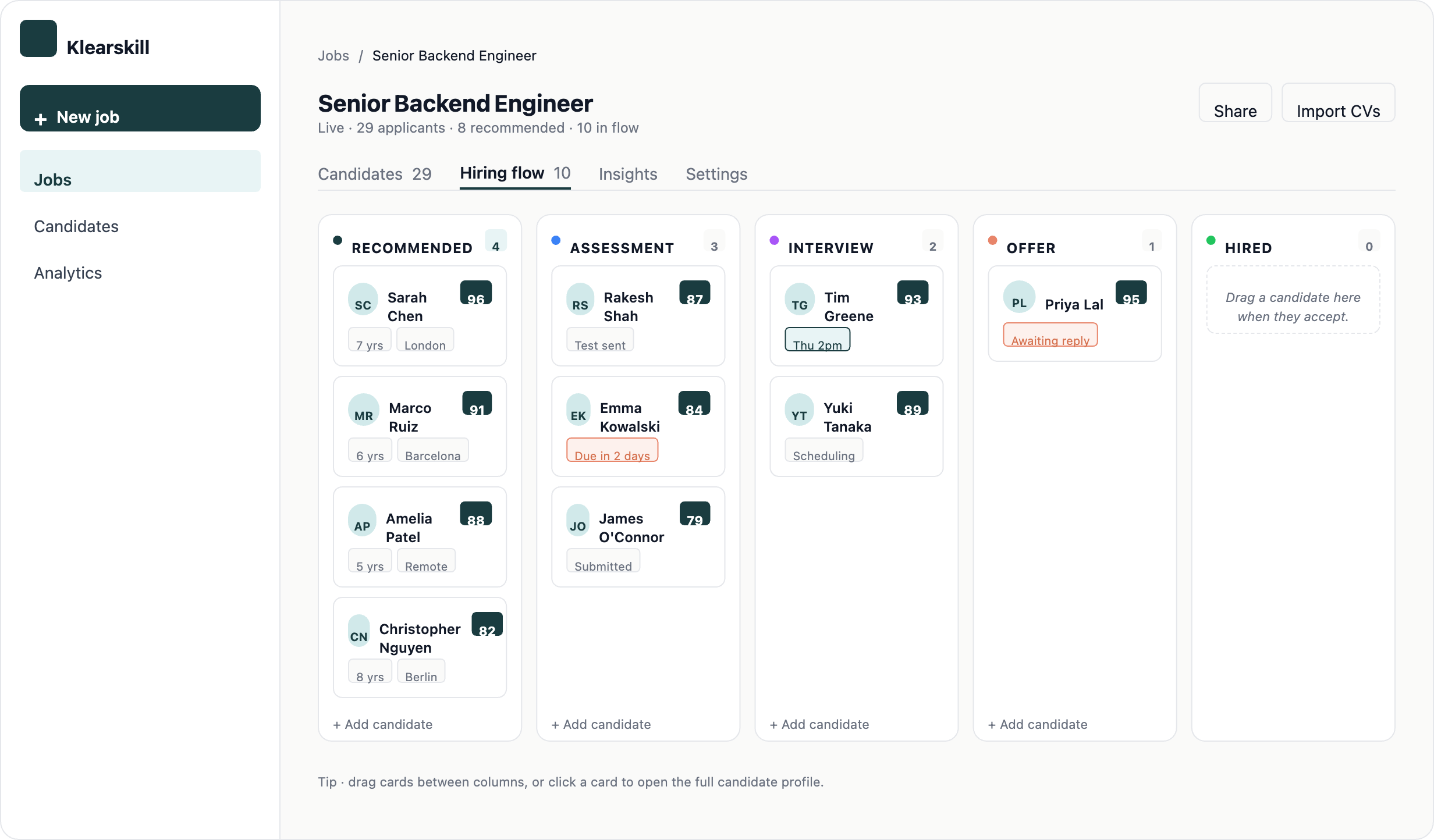
Opening the kanban for a job
From the Jobs grid, click any job. The job dashboard has tabs across the top: Candidates (table view), Hiring flow (kanban view), and others. Click Hiring flow.
Moving a candidate between stages
Three ways: from the kanban, from the candidate detail page, or from the candidates table.
From the kanban
Each card on the kanban has a stage dropdown at the bottom. Click it, pick the new stage. The card moves to that column.
Drag-and-drop is on the roadmap but not in v1. The dropdown is the primary way to move cards.
From the candidate detail page
Open any candidate's detail page. On the right sidebar, there is a Move to stage dropdown. Pick the new stage.
From the candidates table
Select one or more candidates in the table, then click Move stage in the bulk action bar.
What happens when you move a candidate
Moving a candidate is not silent. Depending on your stage email settings, one of three things happens.
Stage email is Off: candidate moves to the new stage. No email sent. Quiet.
Stage email is Suggest: a panel slides in from the right showing the email Klearskill would send for that stage. You see the email preview, you can edit the body inline, then click Send and move or Skip email and just move.
Stage email is Auto-send: same panel, but a 5-second countdown starts. After 5 seconds, the email sends automatically unless you click cancel.
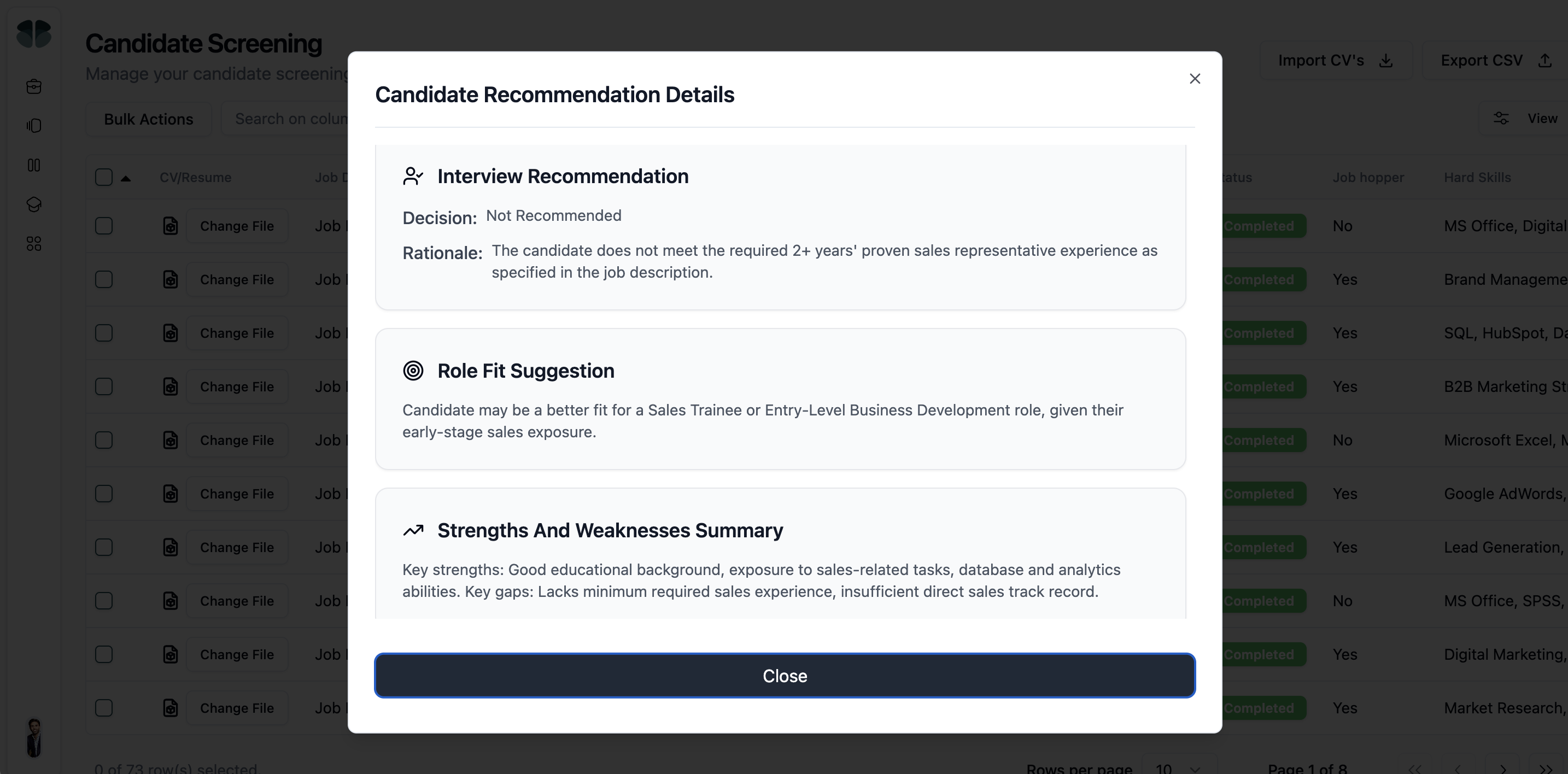
The default policy out of the box:
- Recommended: Off
- Assessment: Suggest
- Interview: Suggest
- Offer: Always manual (locked)
- Hired: Always manual (locked)
- Rejected: Suggest
Configure these in Settings, Stage emails.
Why Offer and Hired are locked
Offer and Hired emails always require manual review. Klearskill never auto-sends these. Why: an offer email and a hire confirmation are high-stakes documents that often include compensation, start dates, and legal language that cannot be templated safely. We force a human in the loop on these stages by design.
You still get a panel with a starter template, but the Send button does not fire until you click it explicitly.
Rejecting candidates
Single rejection: move the candidate to Rejected. The Rejected stage acts like any other. The rejection email policy follows your Settings, Stage emails configuration. Default is Suggest with a polite template.
Bulk rejection: select multiple candidates in the candidates table, click Reject in the bulk action bar. A modal opens showing all recipients, the template, an optional personal note, and a single Send and reject button.
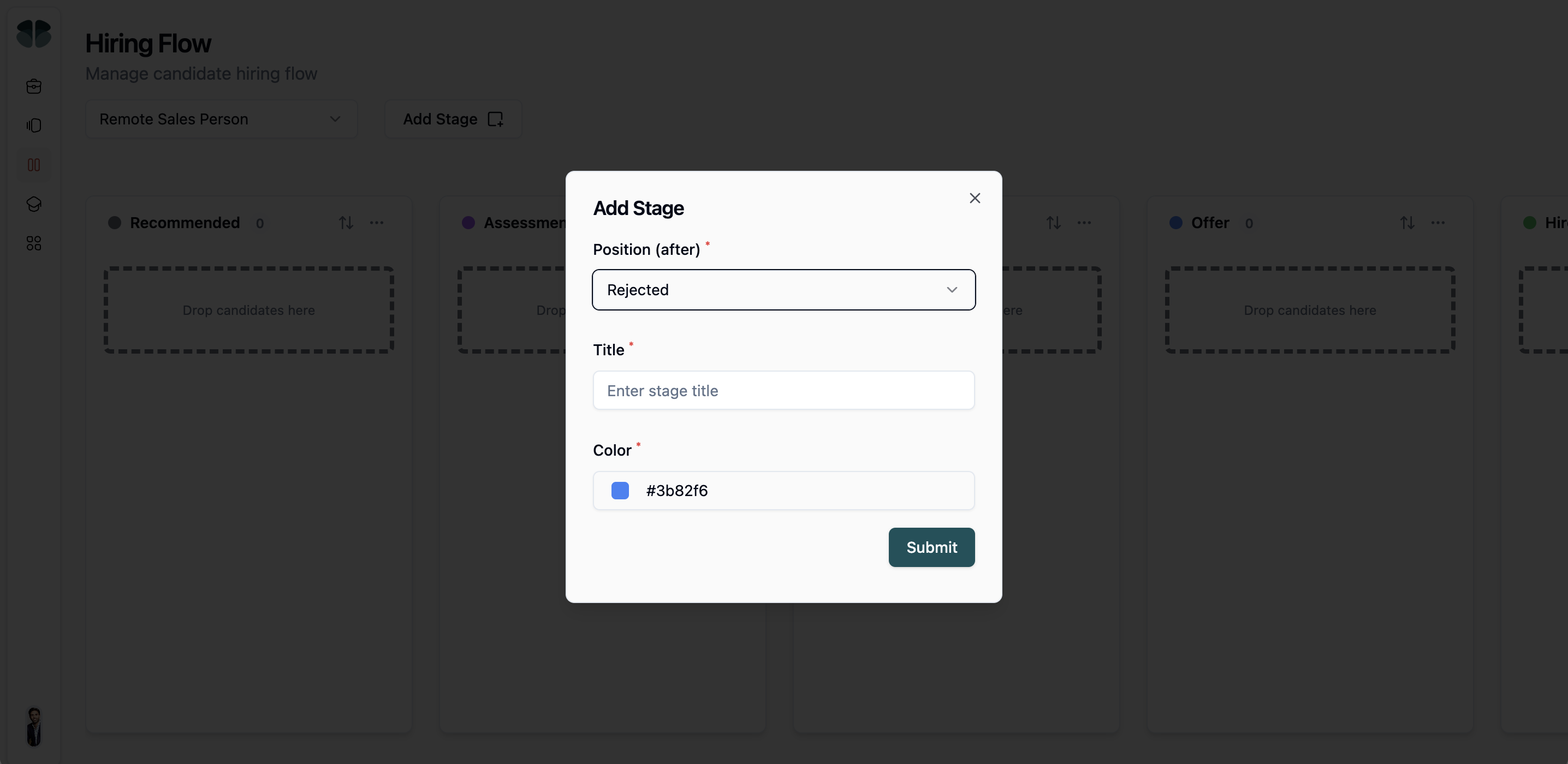
What the kanban tells you at a glance
Each stage column has a count badge in the header showing how many candidates are in that stage. Use this to spot bottlenecks. If you have got 12 in Interview and 0 in Offer, decisions are getting stuck.
Score bubbles stay visible on every card across every stage. Once a candidate moves out of Recommended, the AI score does not disappear, it just stops mattering as much for sorting.
Common questions
A candidate is in Interview but I want to move them back to Assessment. Will they get a confusing email? Yes, by default. Moving backwards triggers the same stage email logic as moving forwards. We recommend turning off the email if you frequently move candidates backwards: Settings, Stage emails and set the relevant stage to Off. Or click Skip email in the slide-in panel each time.
Can I add a custom stage like Reference check? Not in v1. The five stages are fixed by design to keep the product simple. If your team needs a reference check sub-stage, treat it as part of Interview and use a candidate note to track status.
What if I never move candidates out of Recommended? That is fine. The Recommended stage is the inbox. Some recruiters keep candidates there until they actually start interviewing. The kanban supports this.
What to do next
Set up stage email automation so you are not writing the same email 20 times, then read a candidate's score breakdown before moving them to Assessment.