
The candidates table
Updated April 23, 2026 · 3 min read
When you open a job, the candidates table is what you see. It shows everyone who applied, sorted into two groups so you can find the strong applicants without scrolling through dozens of weak ones.
Recommended vs Others
The table is split into two sections.
Recommended for you (always visible, expanded): candidates scoring 85 or higher. These are the ones the AI thinks fit your role best. Always shown by default. The badge counter next to the section title tells you how many.
Other applicants (collapsed by default): everyone scoring below 85. Hidden by default to keep your focus on the strong applications. Click the Other applicants header to expand and see them.
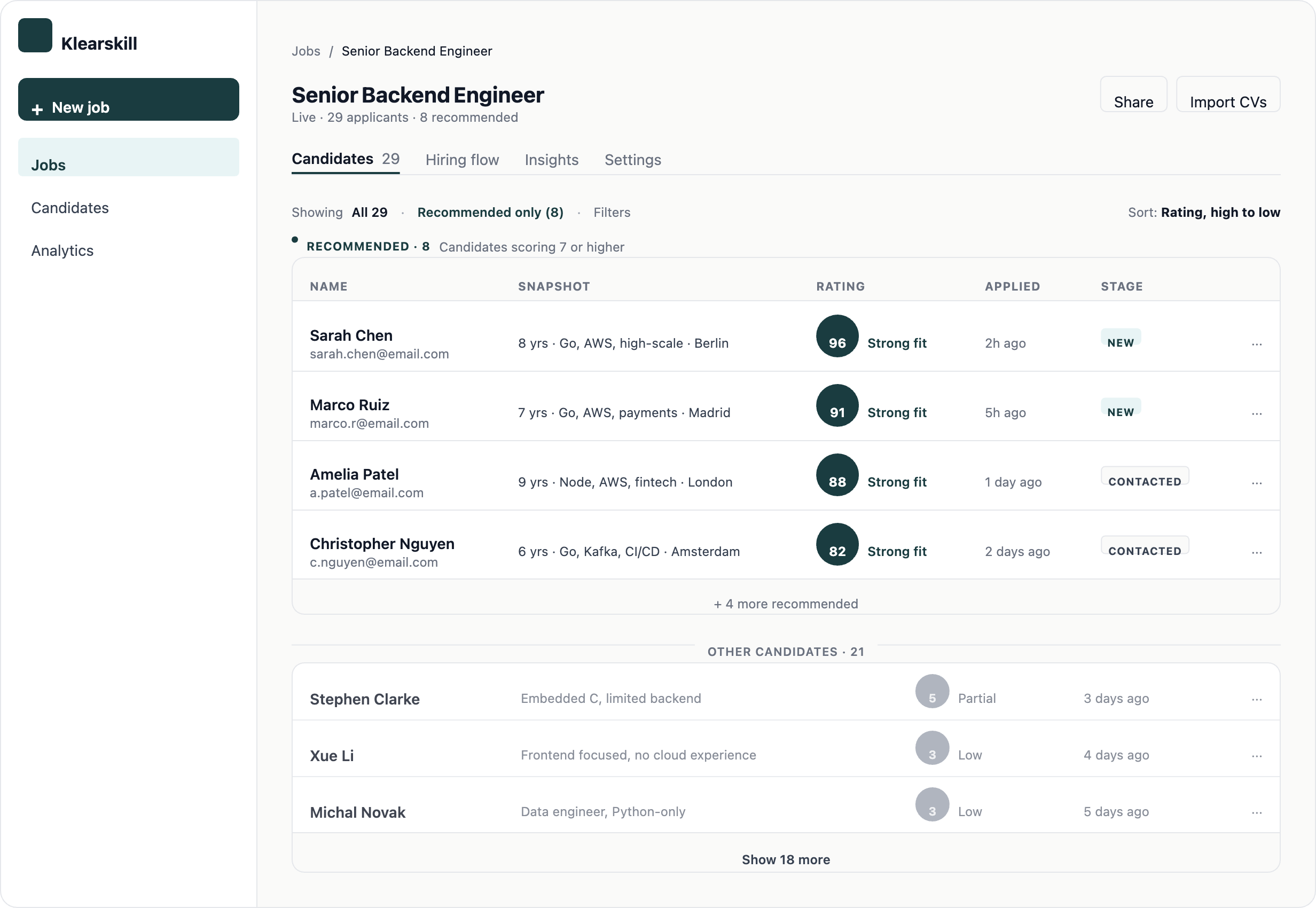
You do not configure thresholds. If you disagree with what is Recommended, give thumbs feedback on the candidate's detail page. Over time the AI calibrates.
Reading a row
- Avatar with the candidate's initials
- Name and current title
- Score as a coloured pill (green for 90+, blue for 75 to 89, amber for 60 to 74, grey below 60)
- Location
- Applied date
Click anywhere on a row to open the candidate detail page.
Searching and filtering
A search bar at the top of the table lets you search by name, current title, or location. Search runs across both Recommended and Others.
There is intentionally no filter by score, stage, or insight in the v1 table. The Recommended split already does the score filter, and stage filtering happens on the kanban view. Keeping the table simple means most users do not need to think about filters.
If you need stage-based filtering, switch to the Hiring flow view by clicking the kanban tab on the job page.
Selecting candidates
Click the checkbox next to any candidate to select them. The bulk action toolbar appears at the top of the table:
- Reject: opens the bulk reject dialog where you can preview the rejection email and send to all selected with one click
- Move stage: move multiple candidates to the same stage at once (e.g. all to Assessment)
- Email all: send the same email to all selected candidates (rate-limited if the count is high)
Select all by clicking the checkbox in the header row.
What happens when a new applicant comes in
The table updates in near real-time. If a new applicant qualifies as Recommended, you will see them appear in the top section. You do not need to refresh.
You will also get an email when the first applicant on a job is Recommended. After that, daily digests if you want them (configure in Settings).
Common questions
My job has 200 applicants and I am overwhelmed. Where do I start? Stick to Recommended. The split was designed exactly for this case. Out of 200, maybe 15 are Recommended. Read those 15 detail pages. Move the strong ones to Assessment. Reject the rest in bulk. Do not open the Others section until you have cleared Recommended.
Why is someone Recommended that obviously is not a fit? The AI uses the job description plus the four scoring insights. If your job description is vague, the AI has less to work with and may score generously. Either tighten your job description (often easier than expected) or use the thumbs-down feedback on the candidate's detail page to help us calibrate.
Can I sort by score, applied date, or name? Recommended is sorted by score (highest first) by default. Others is sorted by applied date (newest first). Custom sorting is intentionally not in the v1 table to keep it simple. If you have a strong use case, let us know.
What to do next
Read a candidate's score breakdown to decide if they are worth interviewing, then move candidates through the hiring kanban once you have started talking to them.