
Write Candidate Email Templates That Convert
Reusable templates for every hiring stage that keep candidates engaged and your team consistent.
Great candidate communication is consistent, timely, and personal. Templates let you achieve all three at scale. This guide walks through the four templates every workflow needs, how to use variables, and how to attach them to the kanban.
Step 1: Set the four core templates
Every hiring workflow needs at least four templates. Write them once, reuse them across every role.
- Application received: fires when a candidate submits. Warm, brief, sets expectations on timing
- Next stage invitation: fires when you move a candidate to Assessment or Interview. Explains what happens next and what to prepare
- Interview scheduling: sends a Calendly or similar link, plus a short description of who they will meet
- Rejection: polite, honest, no false hope. A one-paragraph note beats a formal three-paragraph brush-off
Keep every template short. Recruiters over-write; candidates skim. Three sentences beats seven.
Step 2: Use dynamic variables to personalise at scale
Insert variables so every message feels personal without you rewriting it every time. Klearskill supports the common ones out of the box.
- {Applicant_Name}: first name, always
- {Job_Title}: the role they applied to
- {Company_Name}: your team, useful if you hire across multiple brands
- {Recruiter_Name}: whoever is signing off, from the sending account
- {Stage_Name}: current stage in the pipeline
A rule of thumb: if a candidate could read your email and not know what role they applied to, add {Job_Title}. If they could not tell it is from a human, add {Recruiter_Name} and a real sign-off.
Step 3: Attach templates to the kanban stages
Templates only matter if they fire at the right moment. In Settings, Stage emails, attach each template to its stage and pick a send policy.
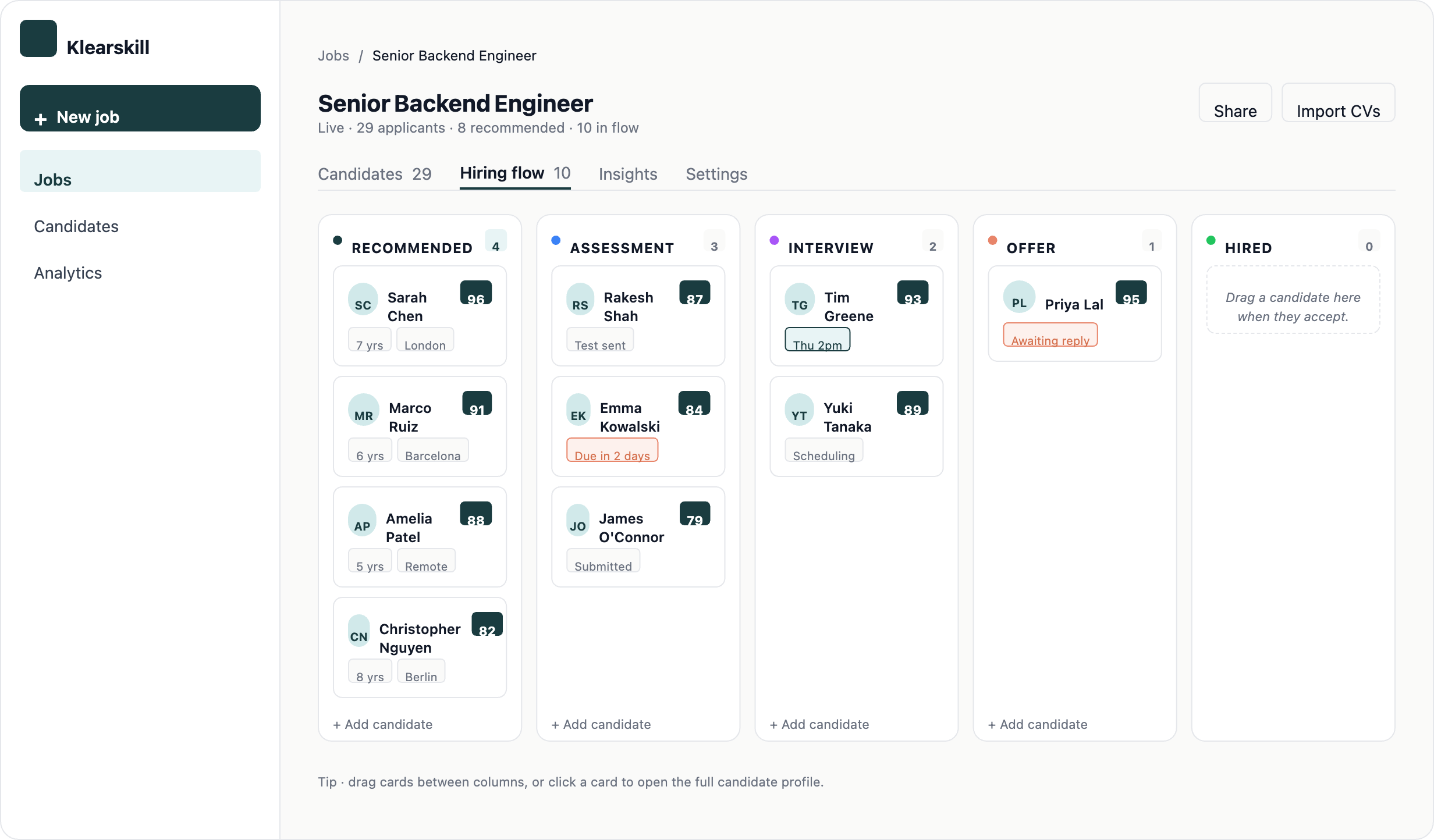
- Suggest: a preview panel slides in when you move the candidate. Edit the body, then click Send and move
- Auto-send: same panel with a 5-second countdown, cancels if you click cancel
- Off: no email, candidate moves silently. Use for internal stages like Recommended
Offer and Hired are always manual by design. High-stakes emails need a human every time.
Step 4: Watch the deliverability indicator
Because Klearskill sends every email through your own account (Gmail, Microsoft, or SMTP), your sending reputation matters. Below each connected account, a health indicator shows Healthy, Attention needed, or Blocked.
Common causes of Attention needed:
- Content that reads too salesy or triggers spam filters (fix the copy)
- Sending to unverified email addresses from a bulk import (verify or drop)
- Missing SPF, DKIM, or DMARC records on your domain (talk to your IT team)
If a template starts landing in spam consistently, revise it. Shorter subject lines, plain-text friendly bodies, and no emoji or excessive links tend to help.
What good looks like
A candidate applies. Within seconds, they get the application received email. Two days later, if you have moved them to Assessment, they get the next stage invitation with clear next steps. If they are rejected, they get a warm rejection within a week. Nobody hears crickets.
Consistency is the point. Templates make it possible for a small team to give every candidate a decent experience without any single person having to write from scratch.
What to do next
Connect your email account if you have not yet, then set up automatic stage emails to make the whole thing self-driving.